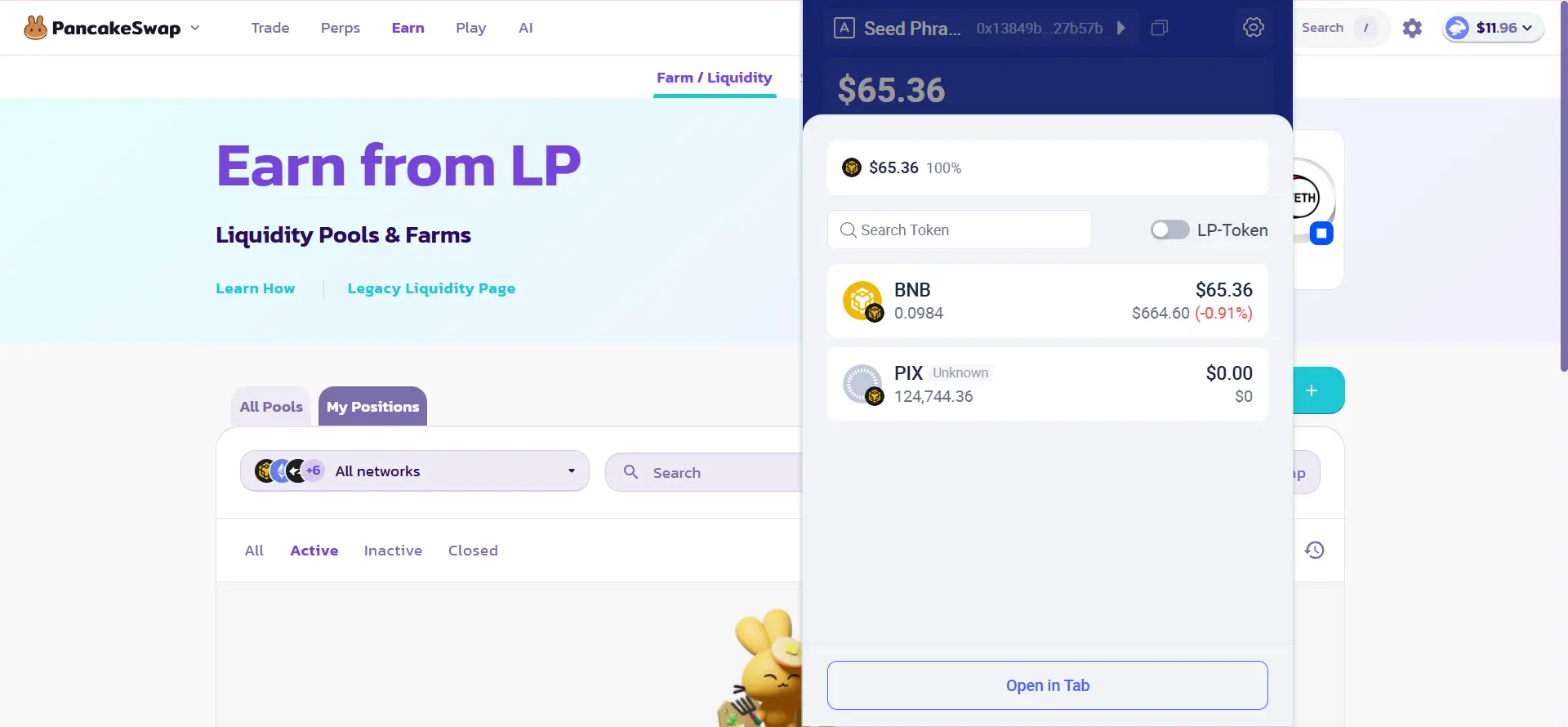

Adding Liquidity to Pancakeswap (Binance Smart Chain Network)
- 01
Connecting Rabby Wallet to the PancakeSwap website
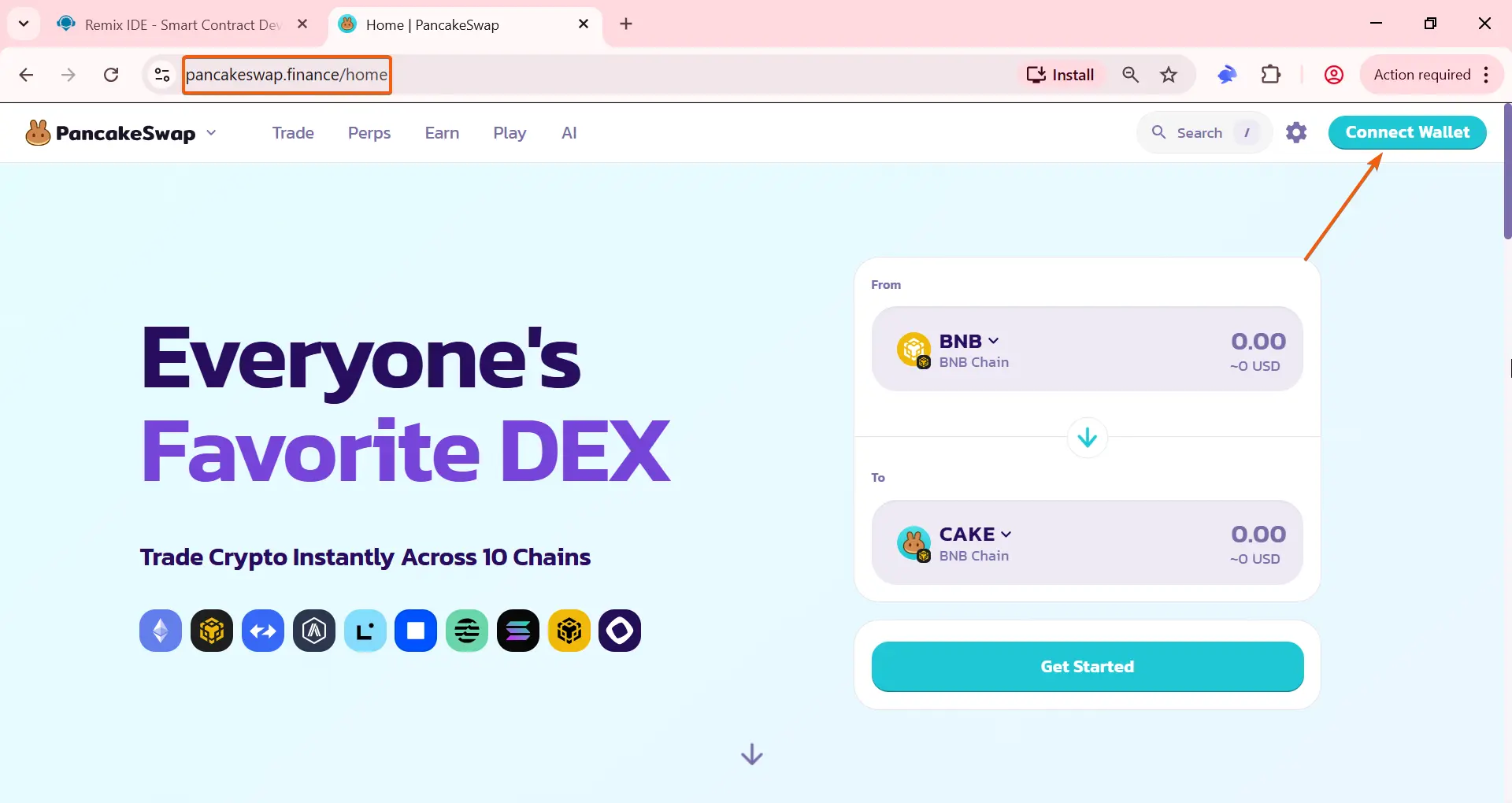
Go to the PancakeSwap website
Make sure you are on the official pancakeswap domain
Click 'Connect Wallet':
- 02
Connecting Rabby Wallet to the PancakeSwap website
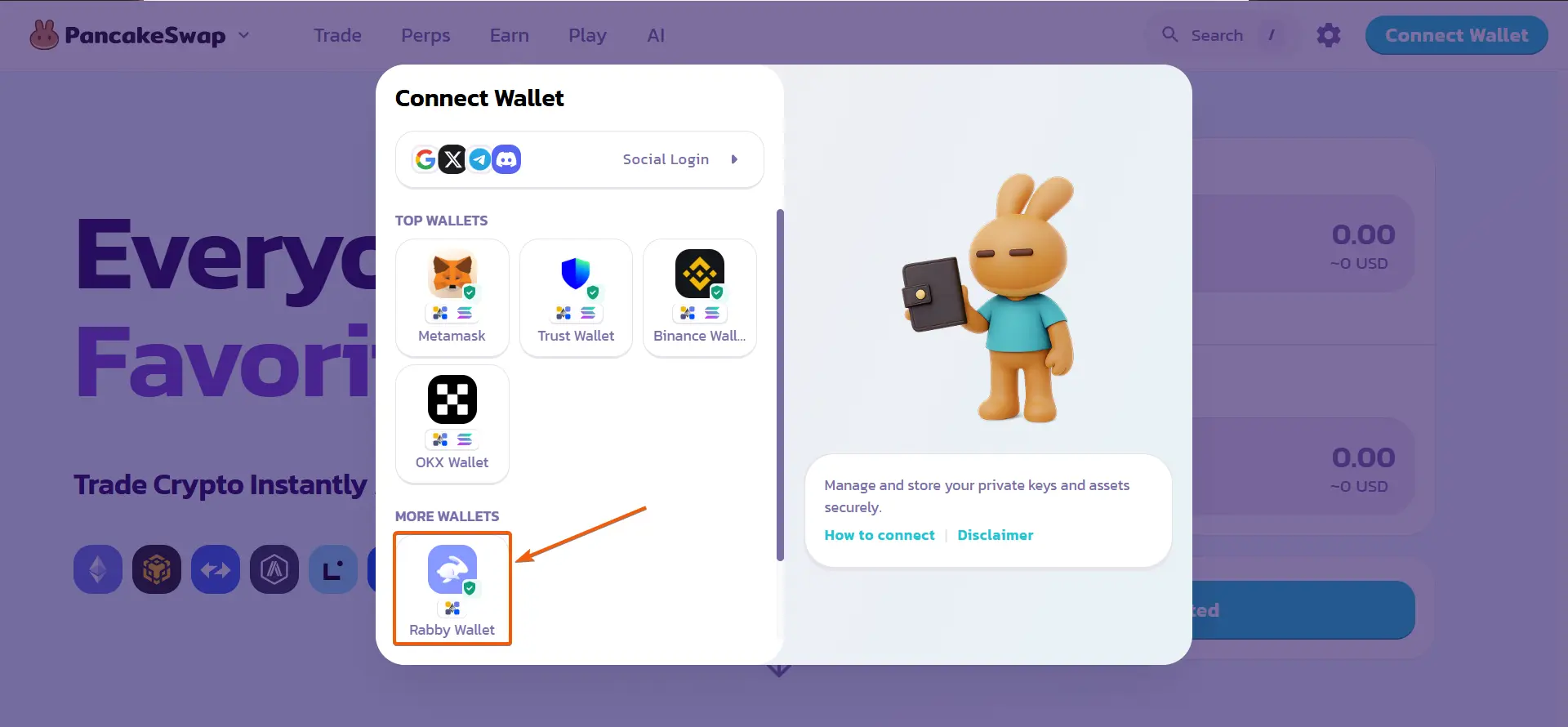
Select Rabby Wallet.
- 03
Connecting Rabby Wallet to the PancakeSwap website
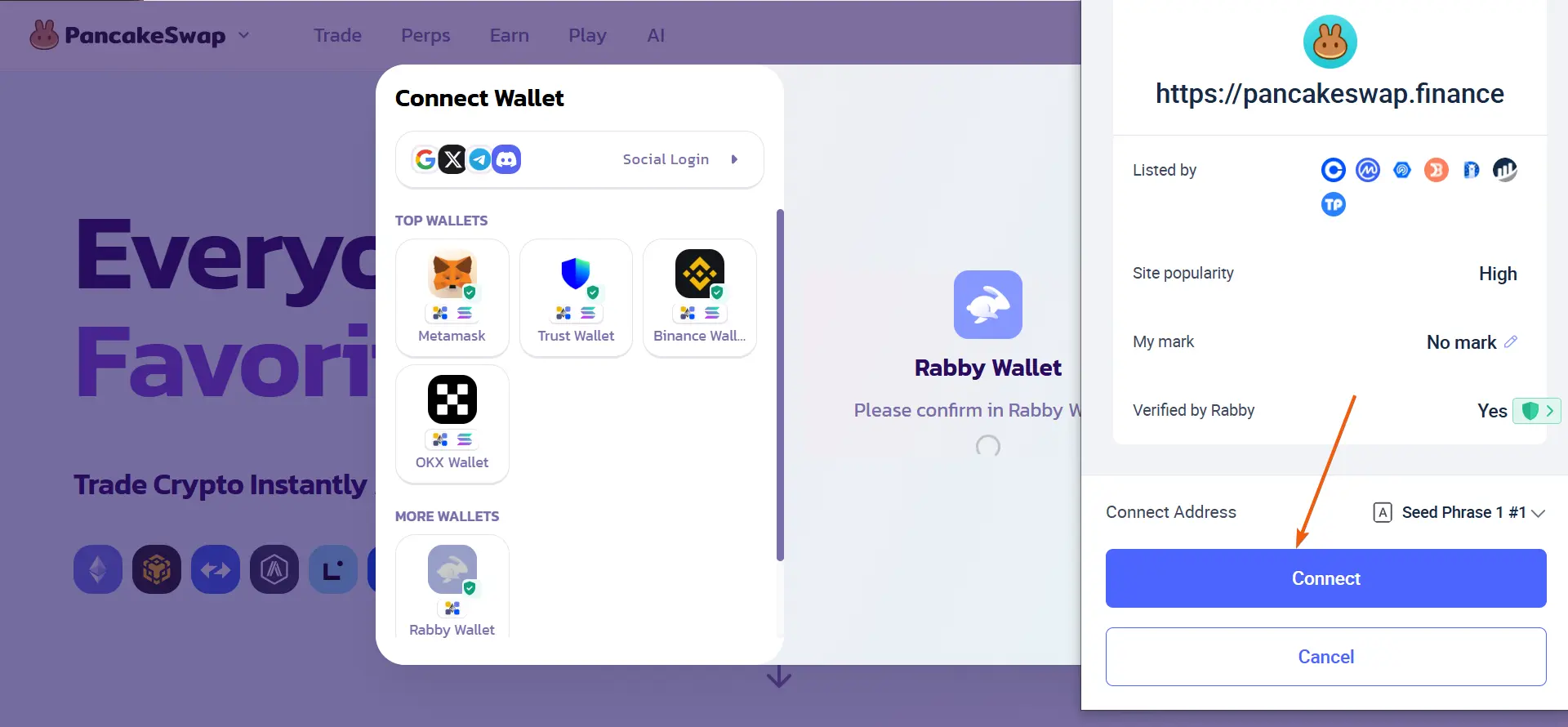
Confirm the connection of your wallet to the site by clicking 'Connect' in the Rabby Wallet pop-up window.
- 04
Importing the token
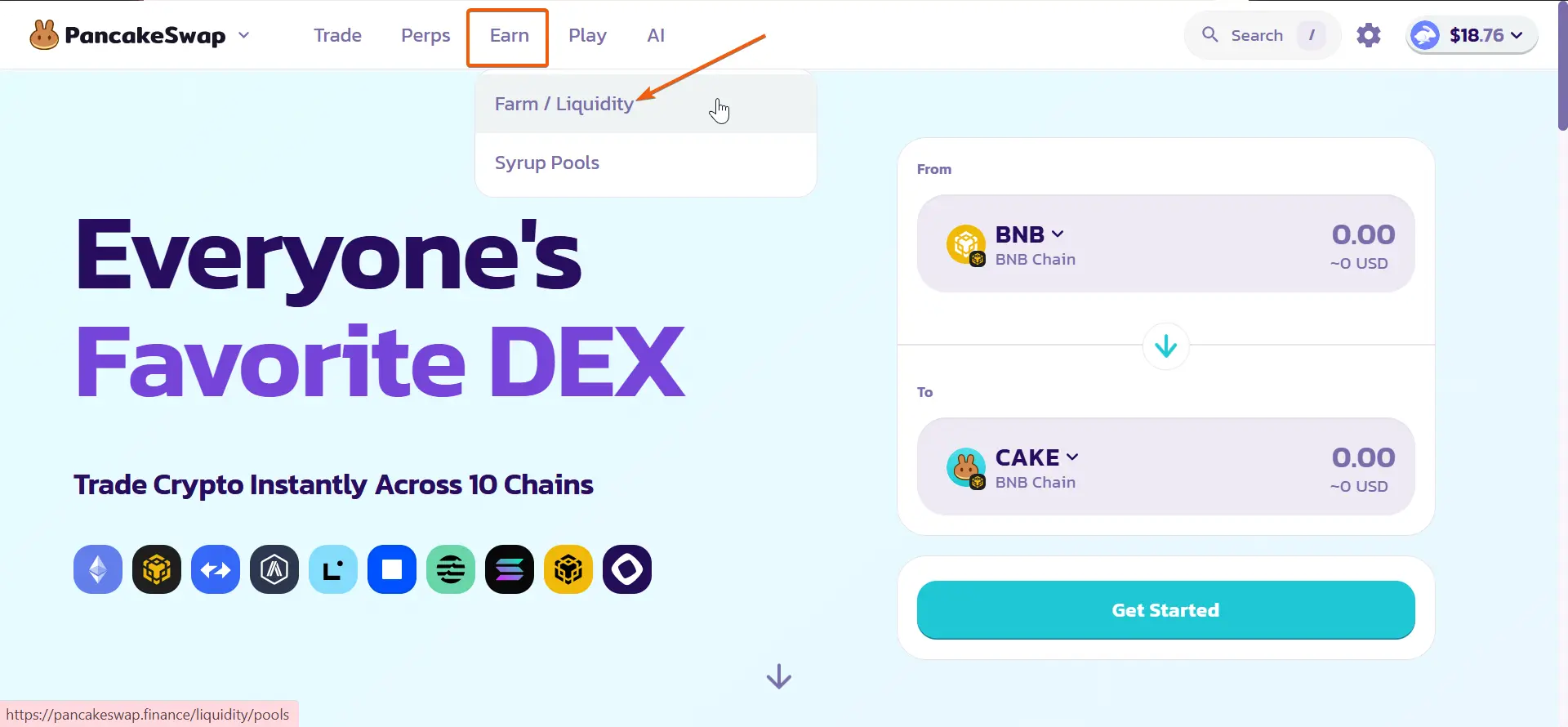
Go to the 'Farm/Liquidity' section
- 05
Importing the token
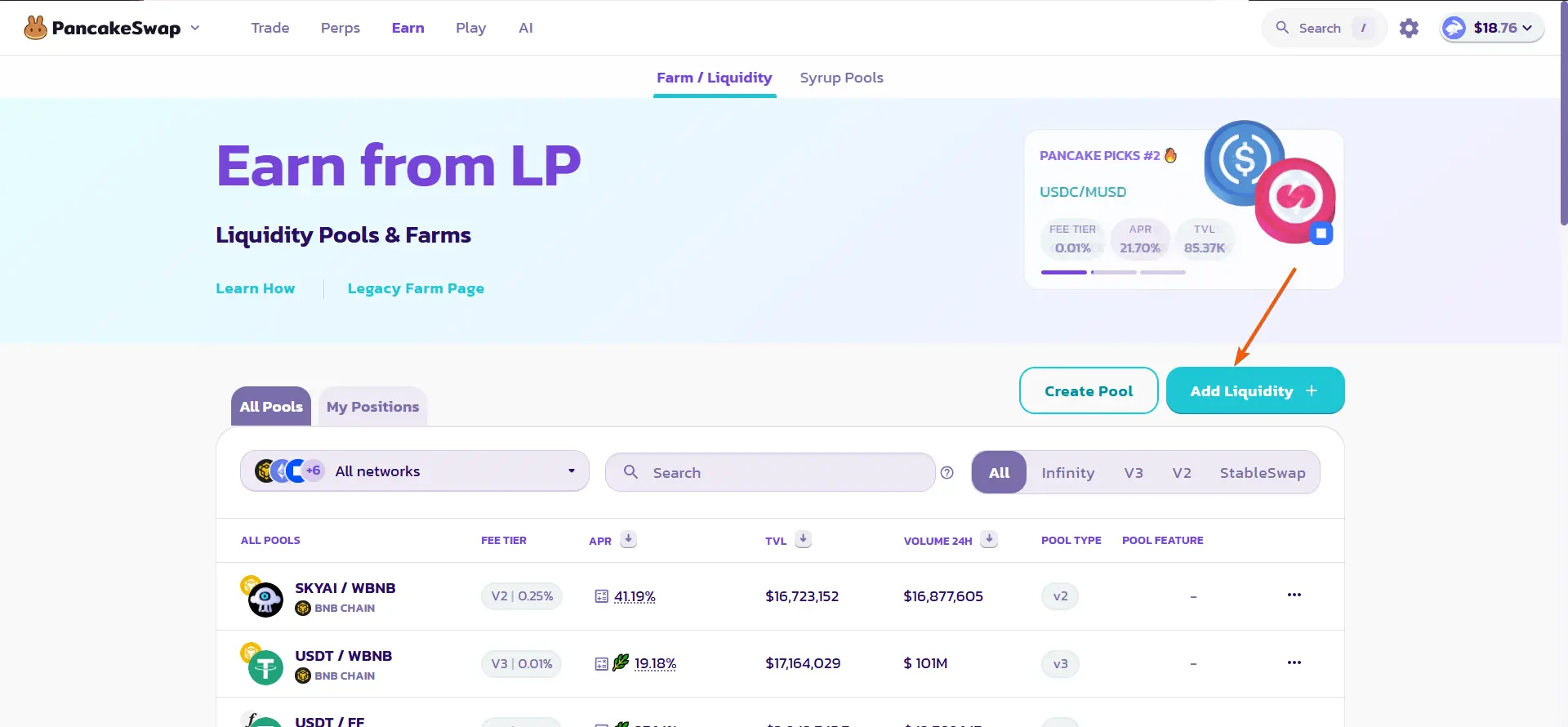
Click 'Add Liquidity +'
- 06
Importing the token
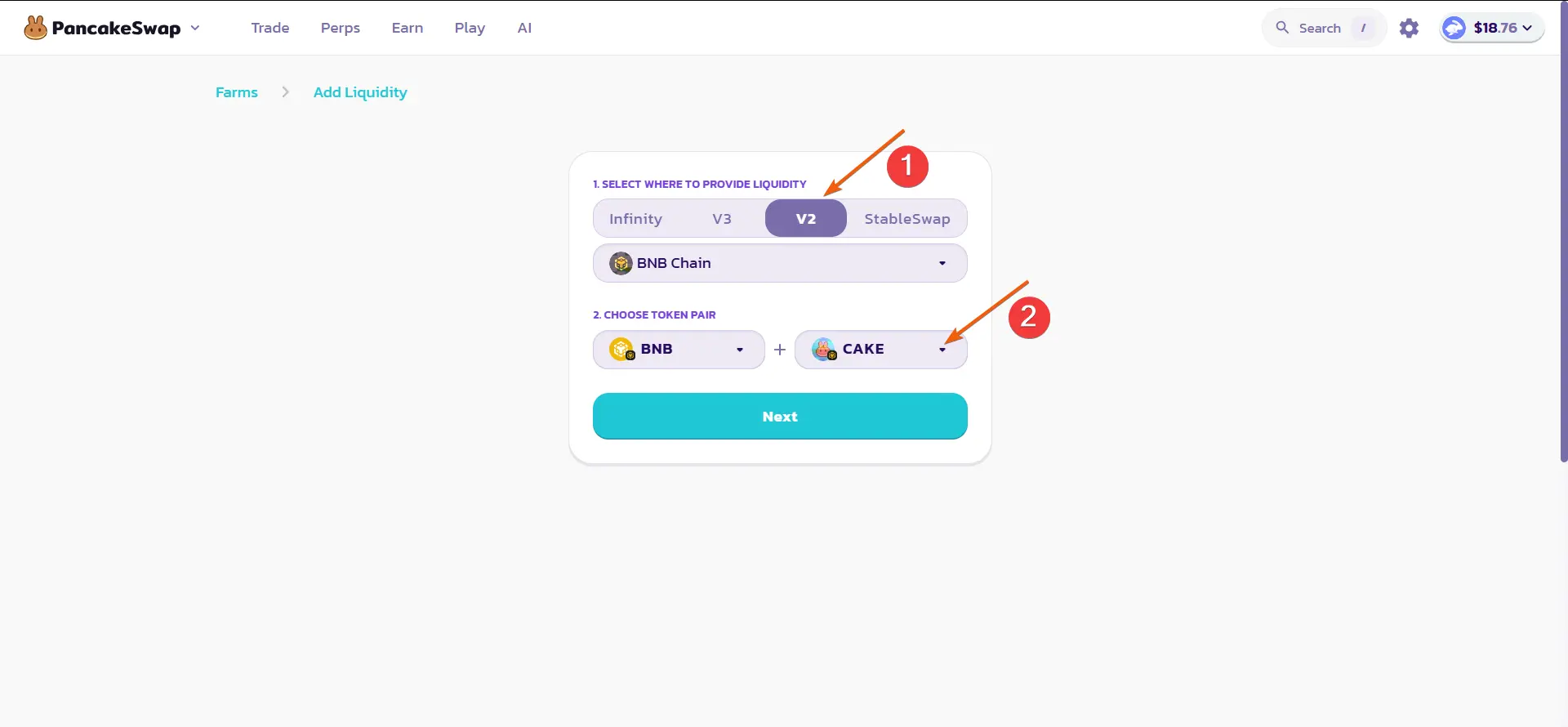
Select 'V2' and click on 'CAKE'
- 07
Importing the token
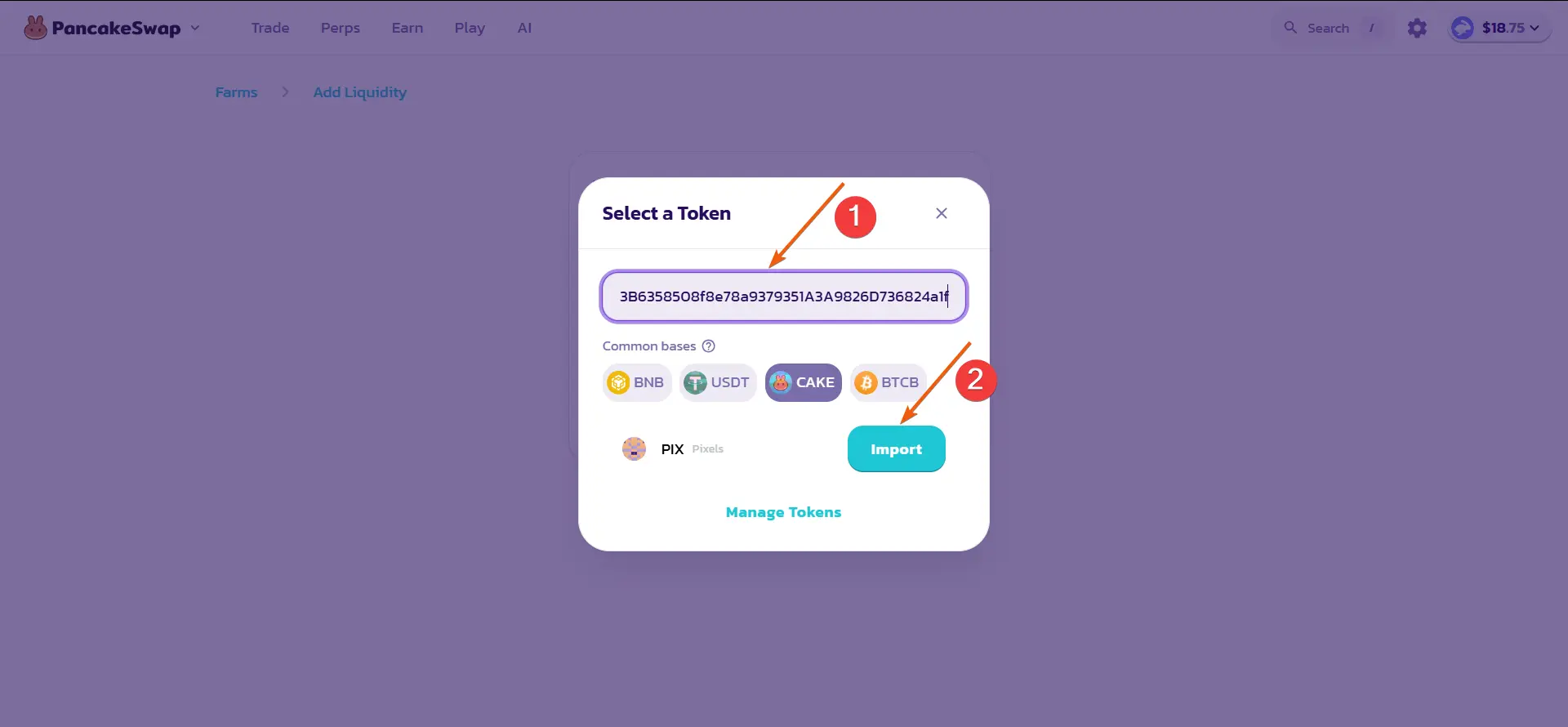
Paste the previously saved token address and click 'Import'
- 08
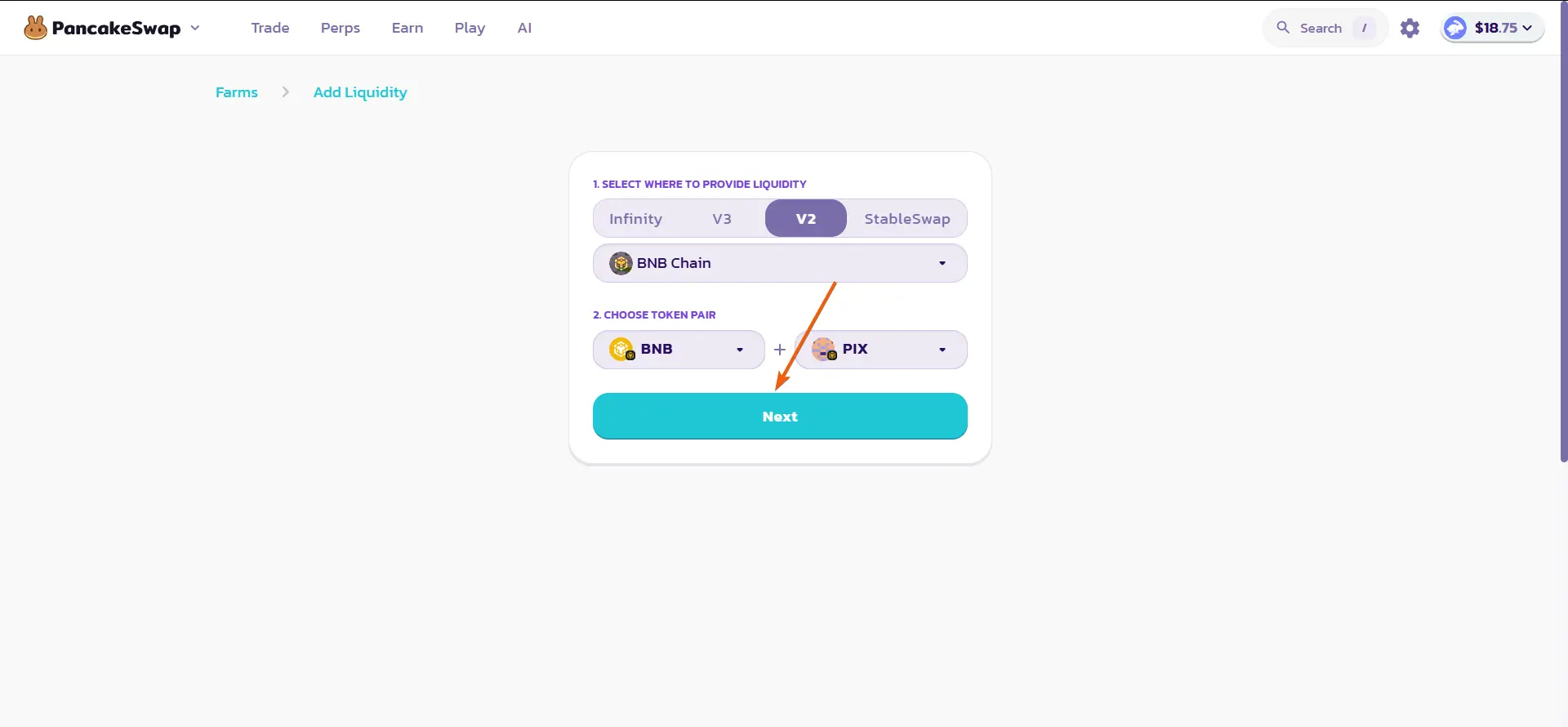
Importing the token
Click 'Next'
- 09
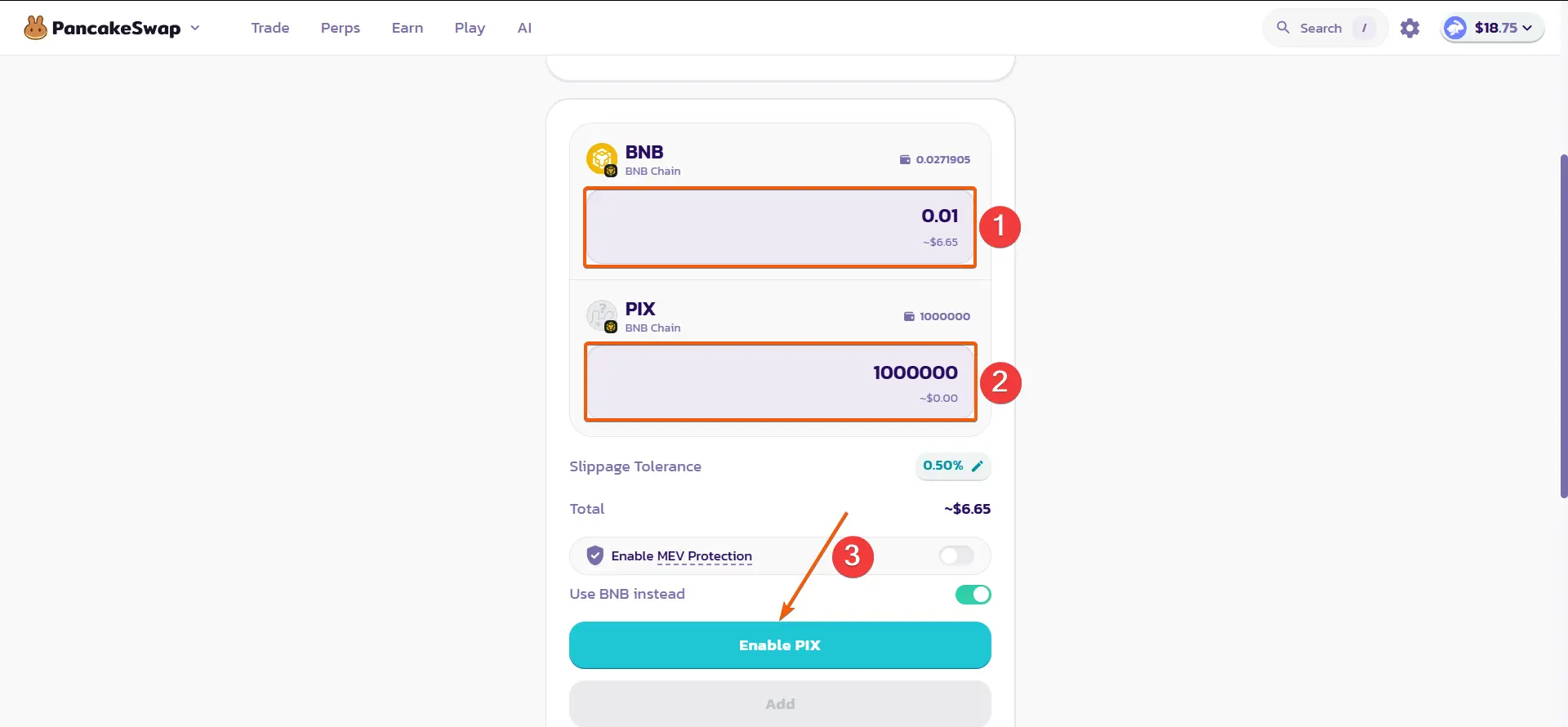
Selecting the amount of liquidity
Enter the desired amount of BNB and the amount of your token you want to add to the liquidity pool. Then click 'Enable PIX'
- 10
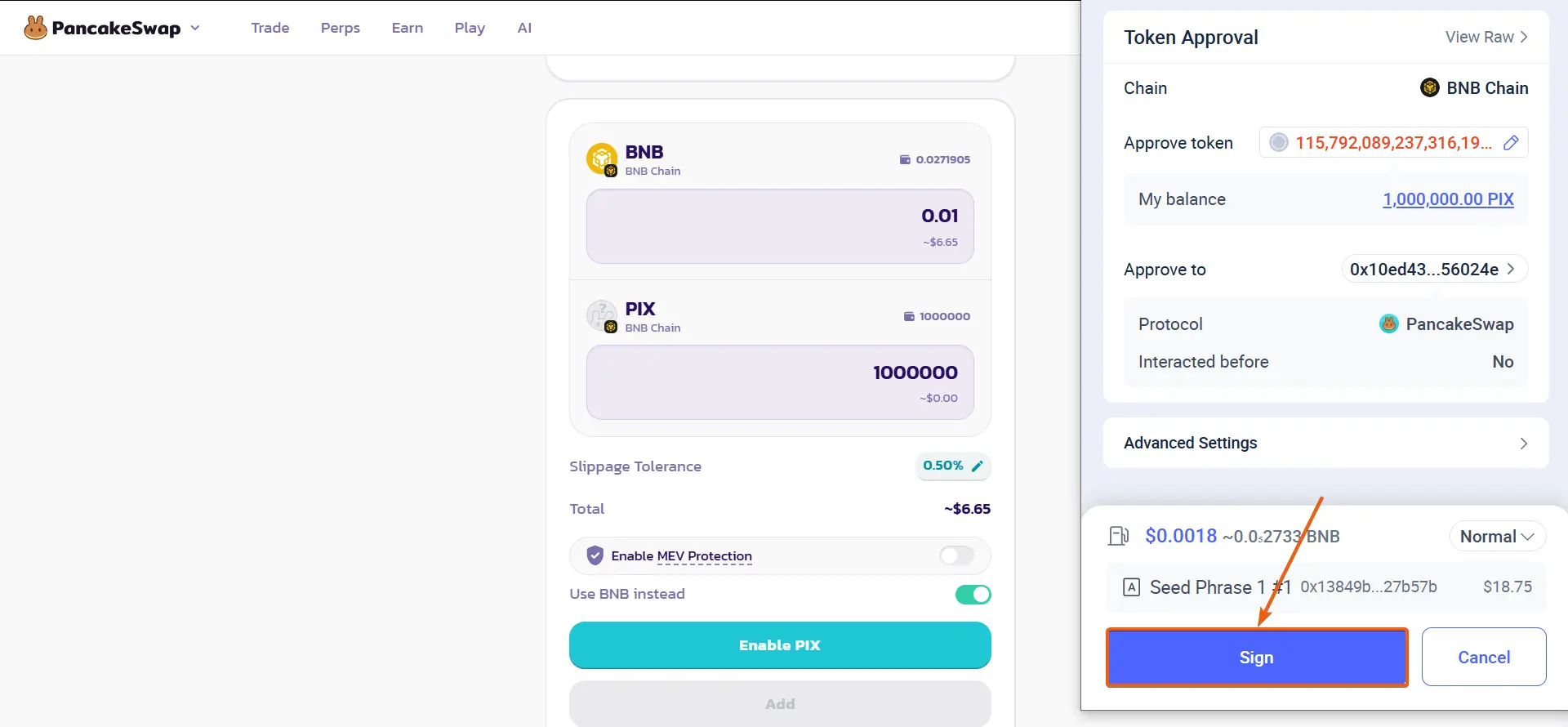
Selecting the amount of liquidity
Confirm the transaction in the Rabby Wallet pop-up window.
- 11
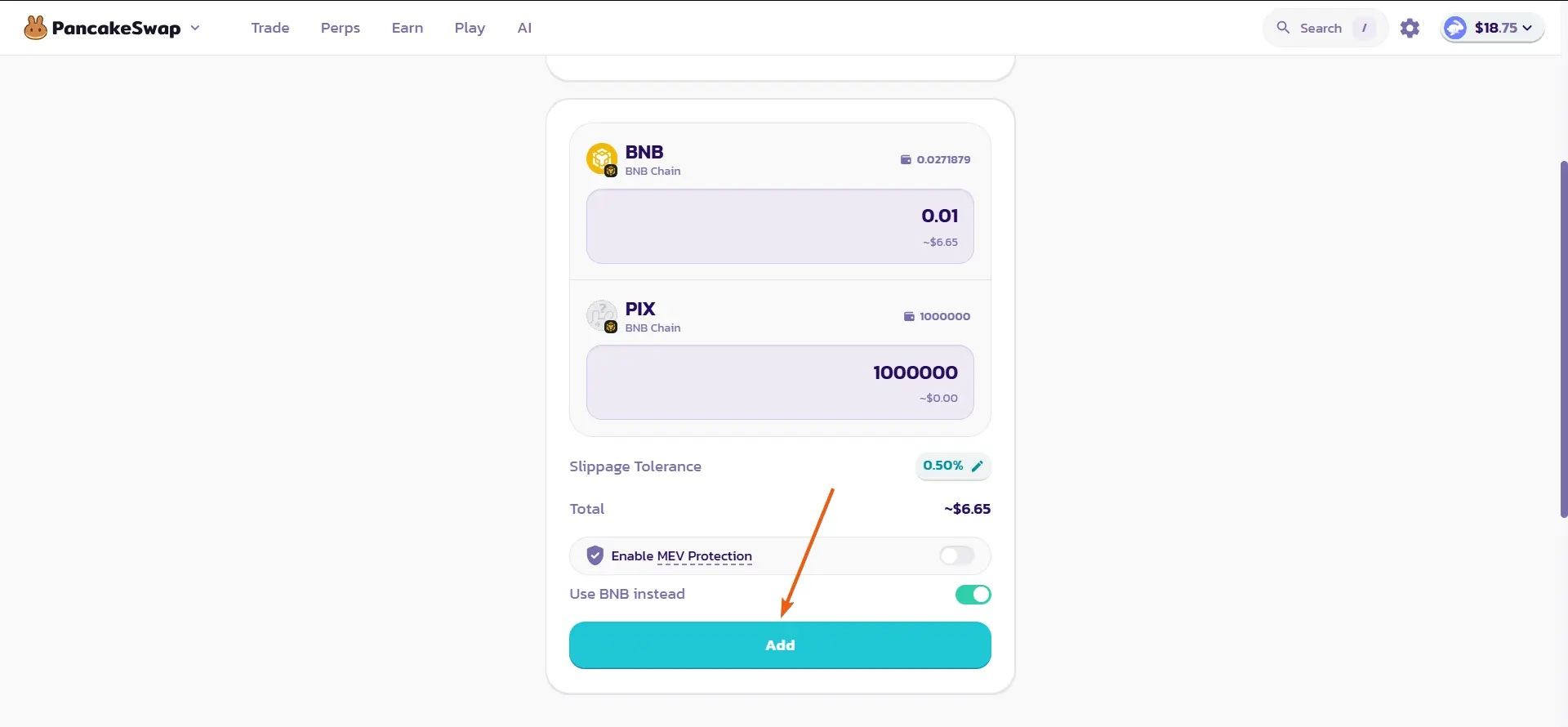
Selecting the amount of liquidity
Click 'Add'
- 12
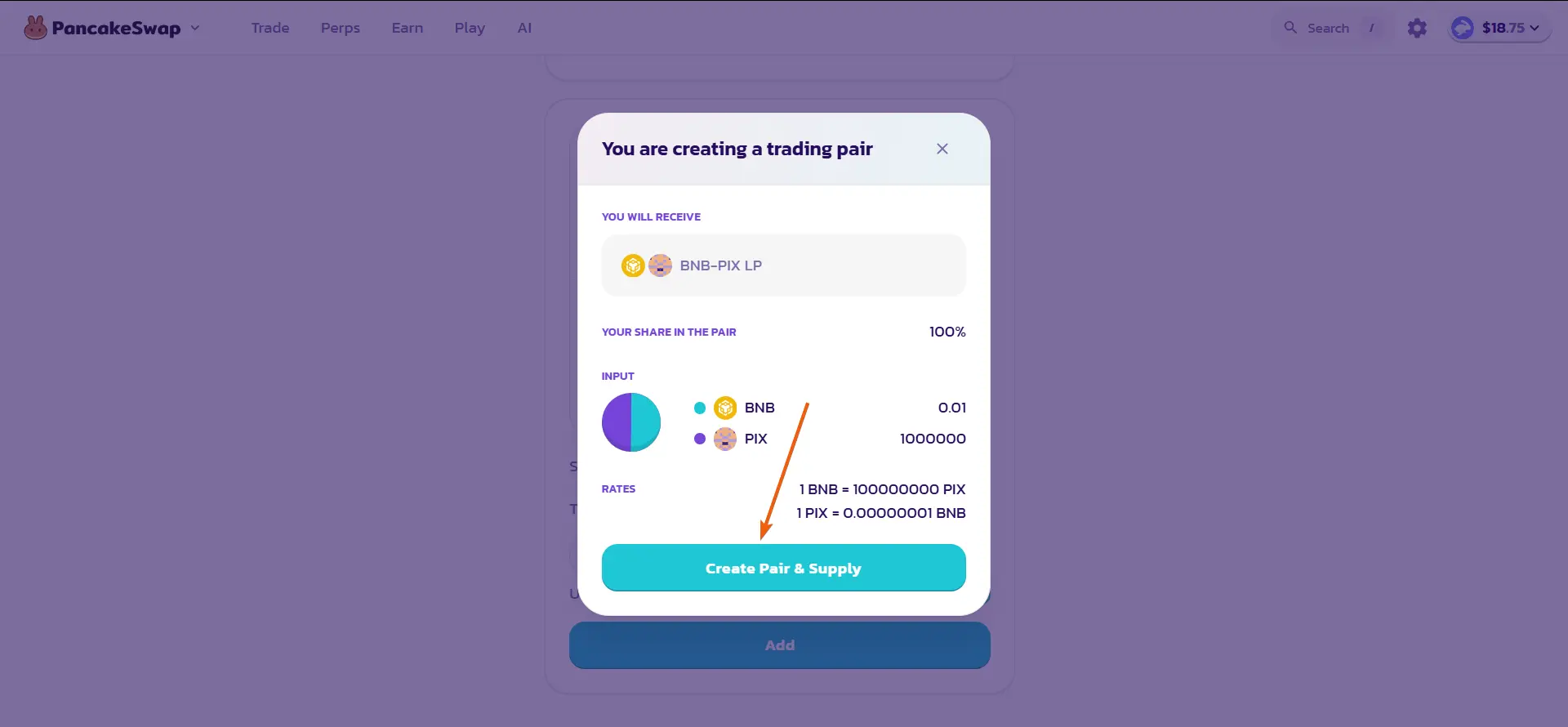
Selecting the amount of liquidity
Click 'Create Pair & Supply'
- 13
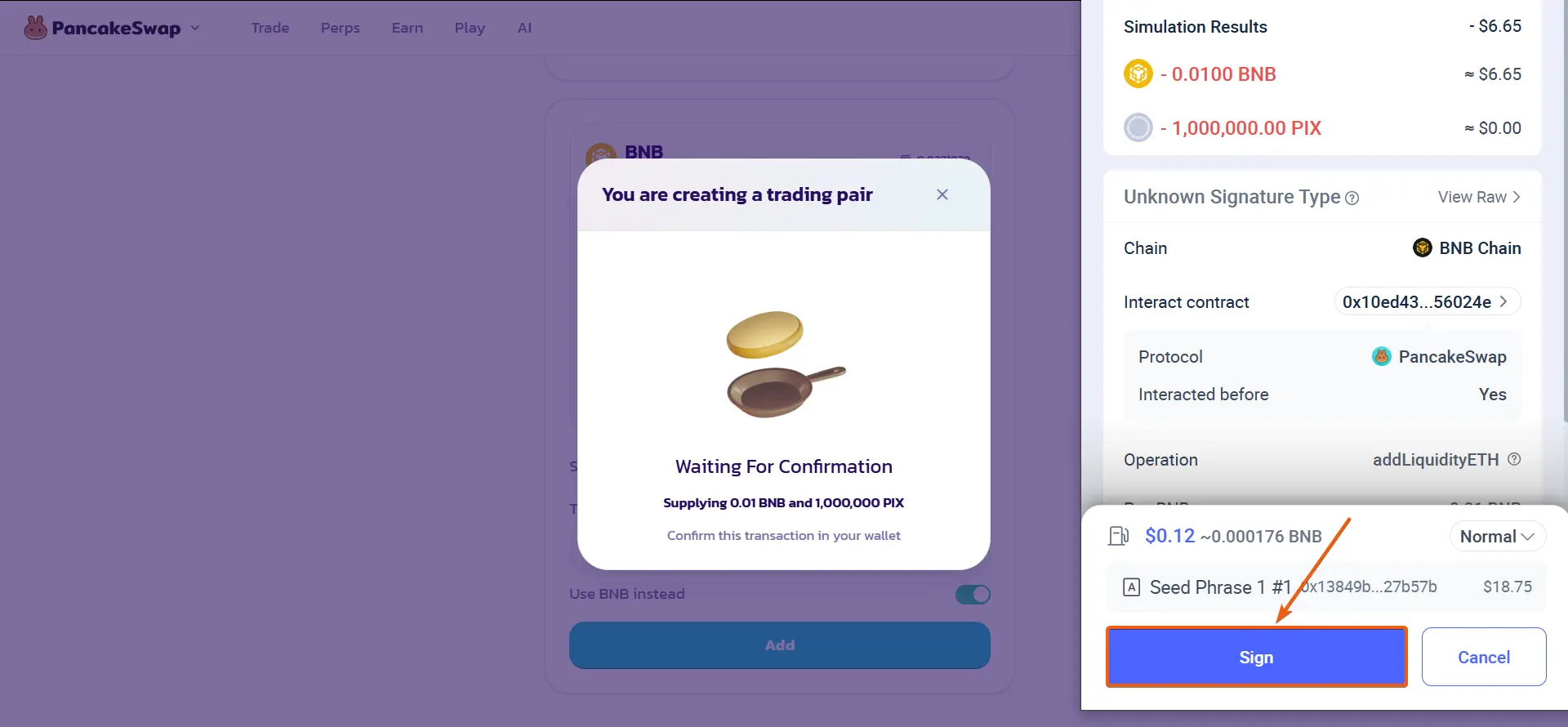
Selecting the amount of liquidity
Confirm the add liquidity transaction in the Rabby Wallet pop-up window.
- 14
Selecting the amount of liquidity
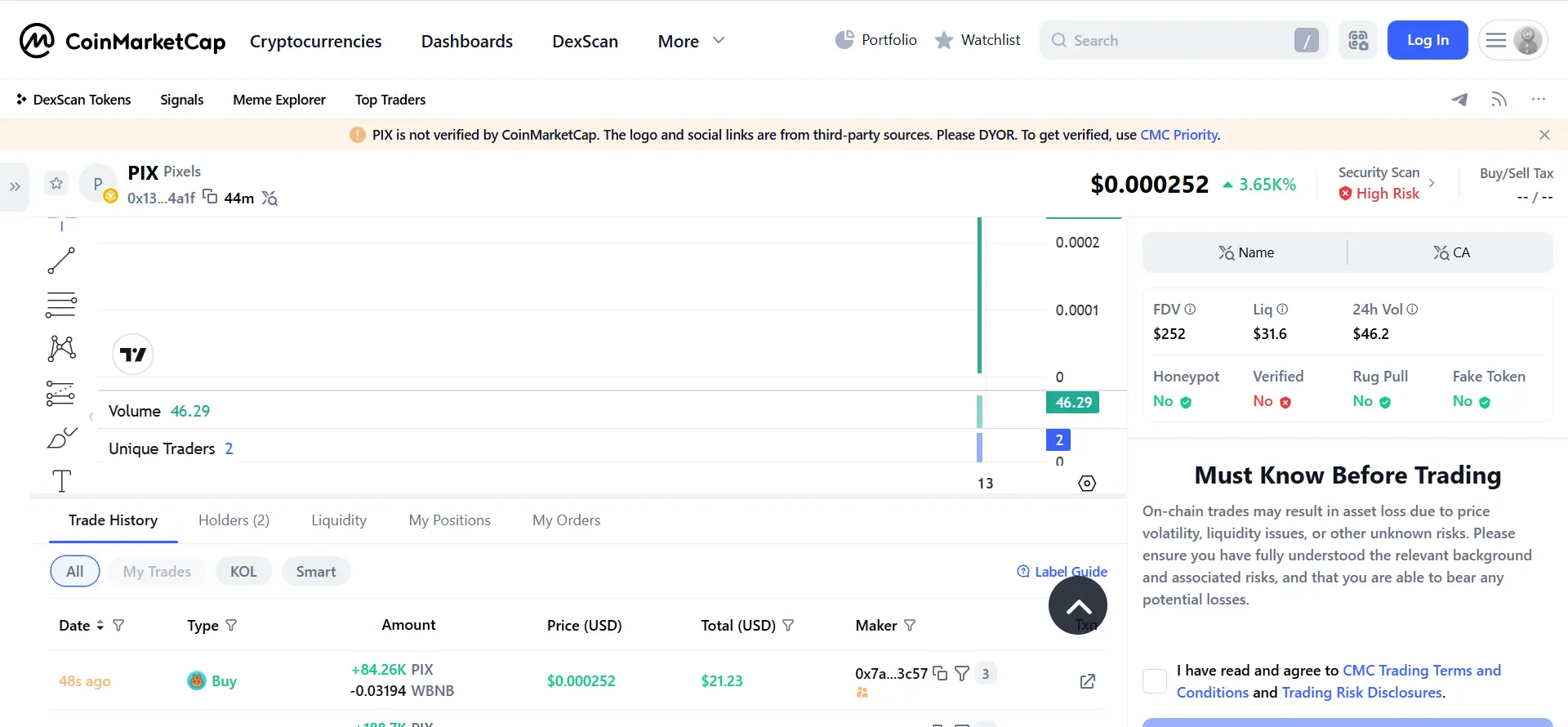
You can check the successful addition of liquidity on the CoinMarketCap website by pasting your token address into the site's search bar.
Trading history and other useful information will be displayed.


Removing Liquidity on Pancakeswap (Binance Smart Chain Network)
- 15
Removing liquidity
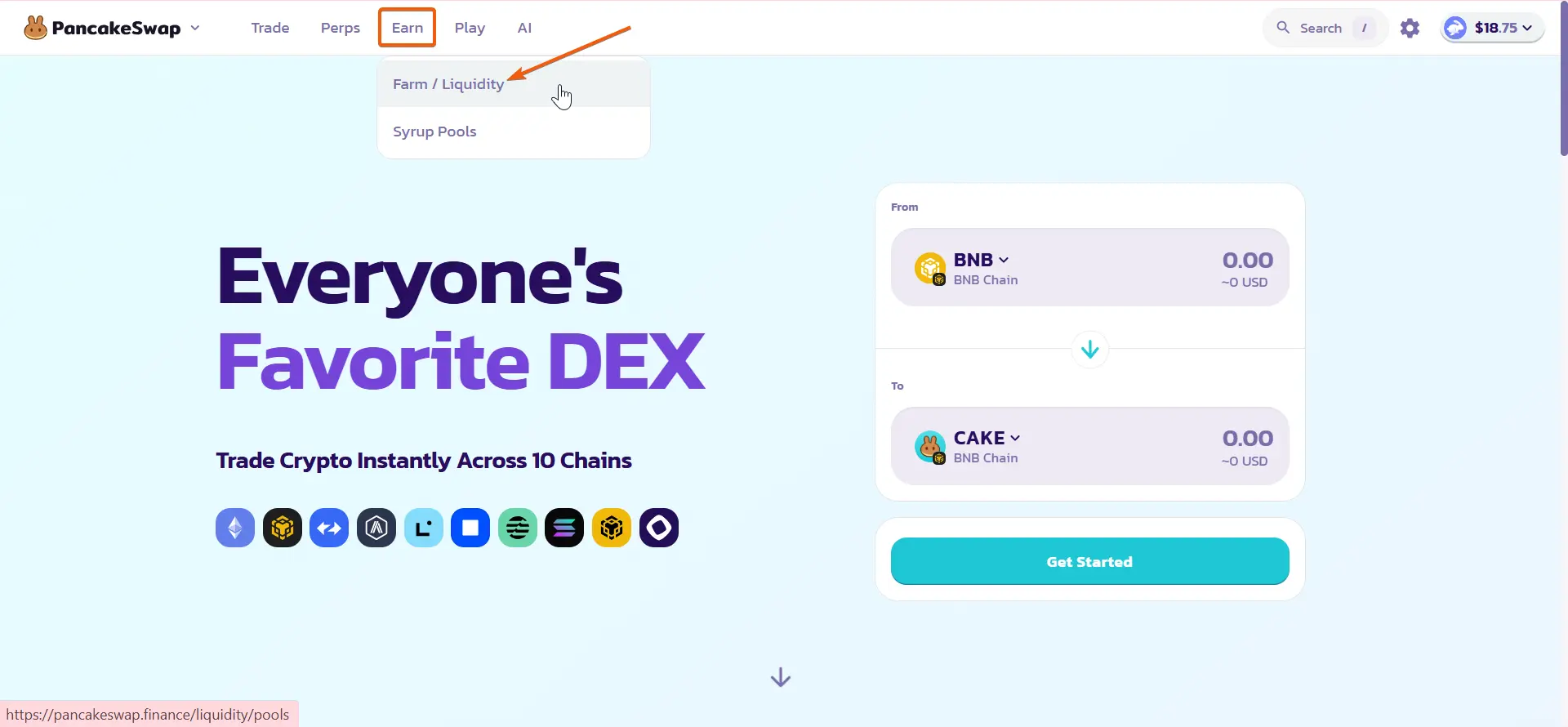
After successfully launching the Honeypot token, you can withdraw the liquidity along with the funds received from investor purchases.
To do this, go to the 'Farm/Liquidity' section
- 16
Removing liquidity
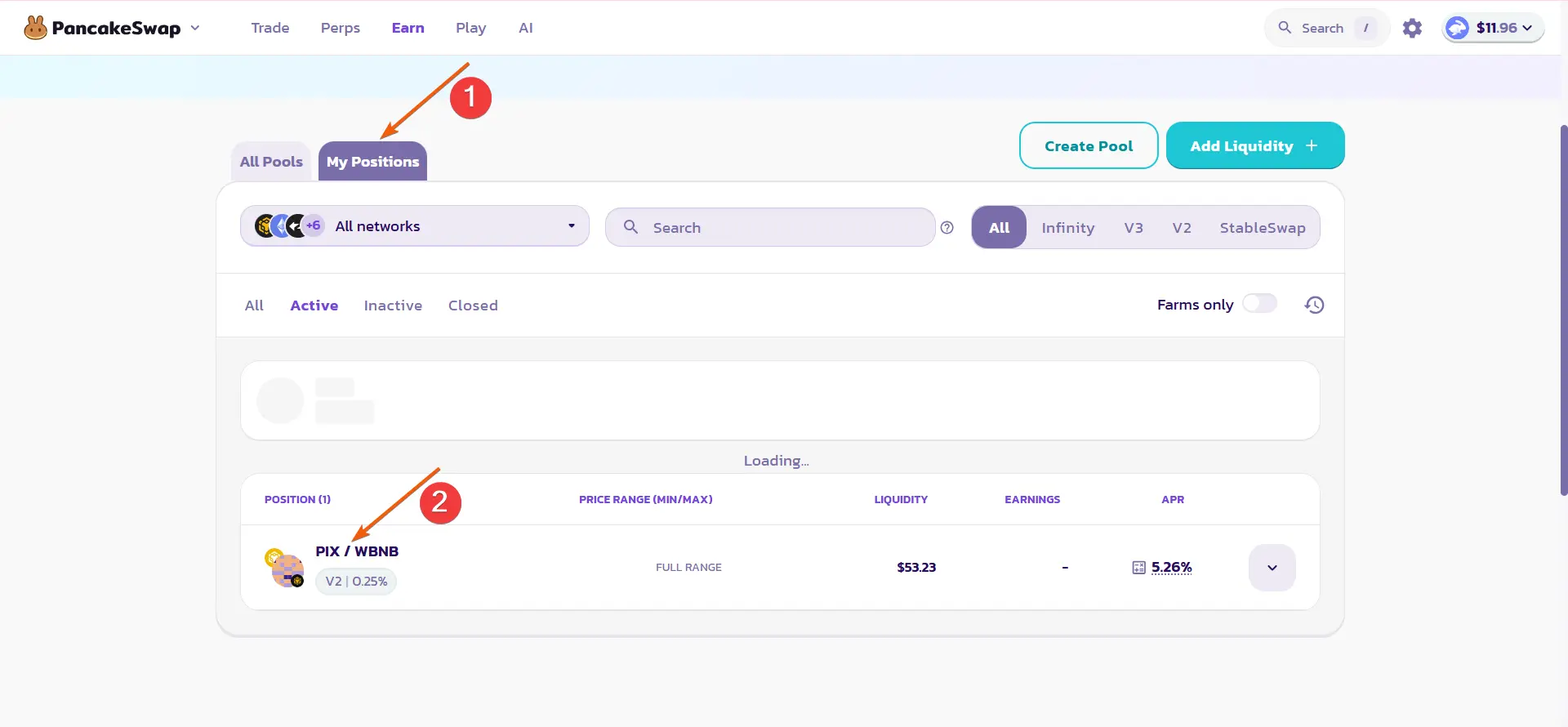
Select 'My Positions' and click on your liquidity pool
- 17
Removing liquidity
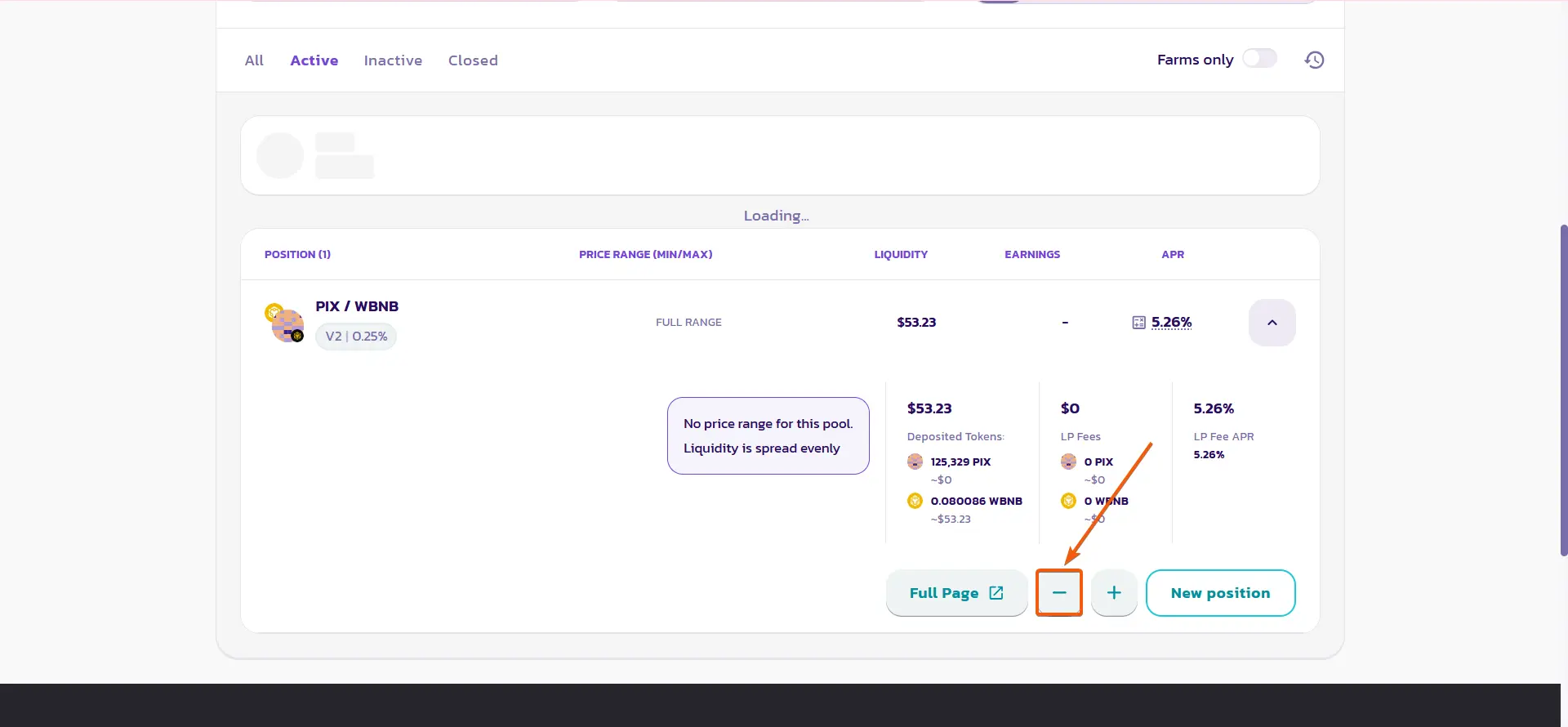
Click the '-' sign.
- 18
Removing liquidity
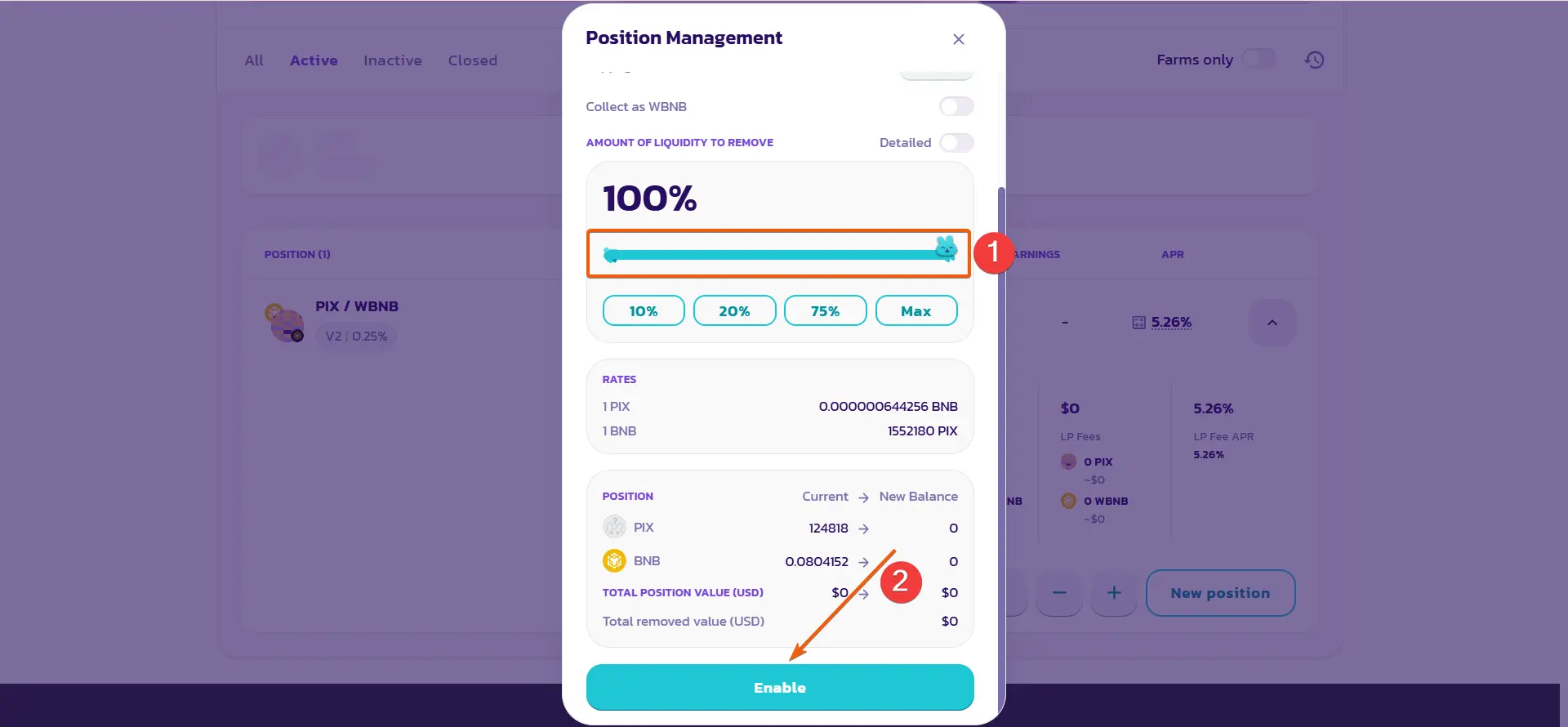
Select the percentage of liquidity you want to withdraw and click 'Enable'.
- 19
Removing liquidity
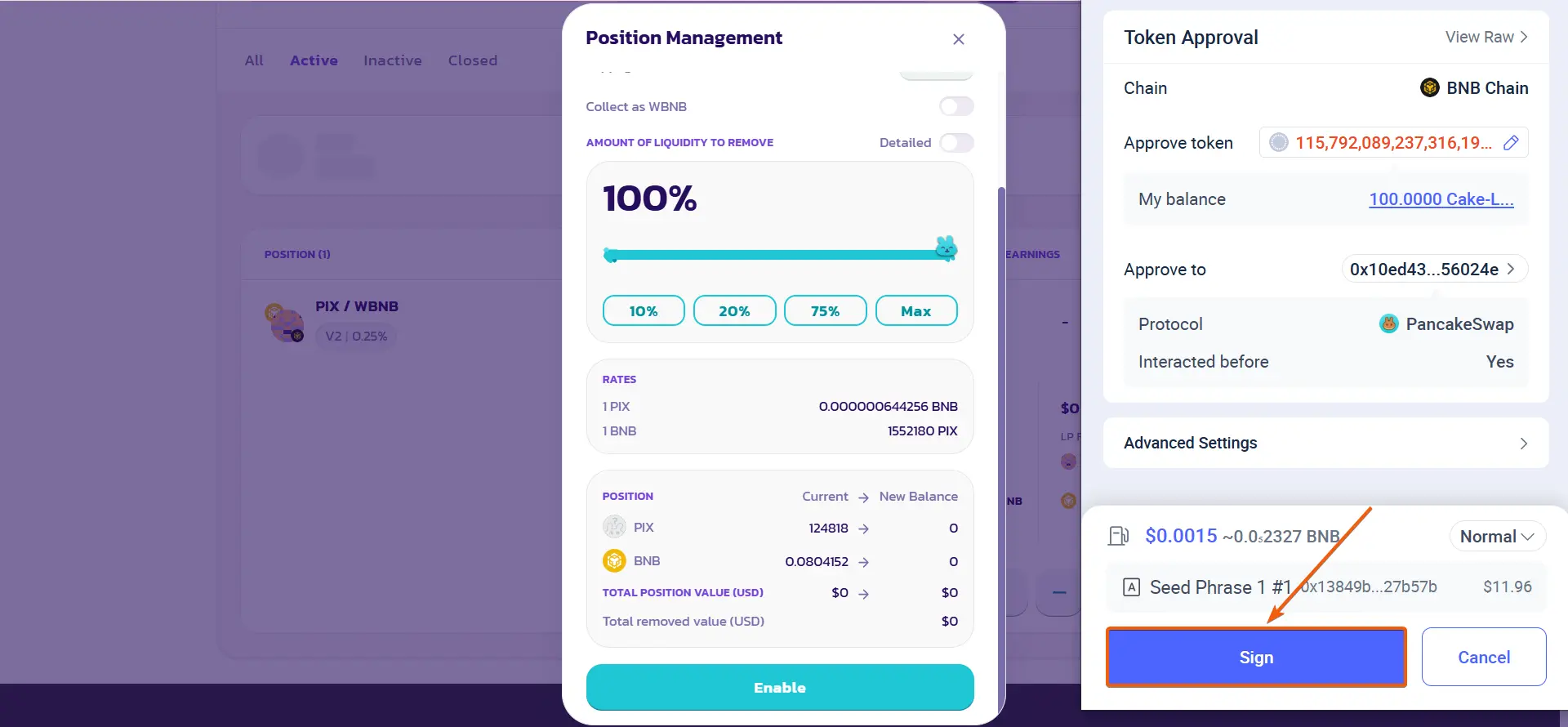
Confirm the transaction in the Rabby Wallet pop-up window.
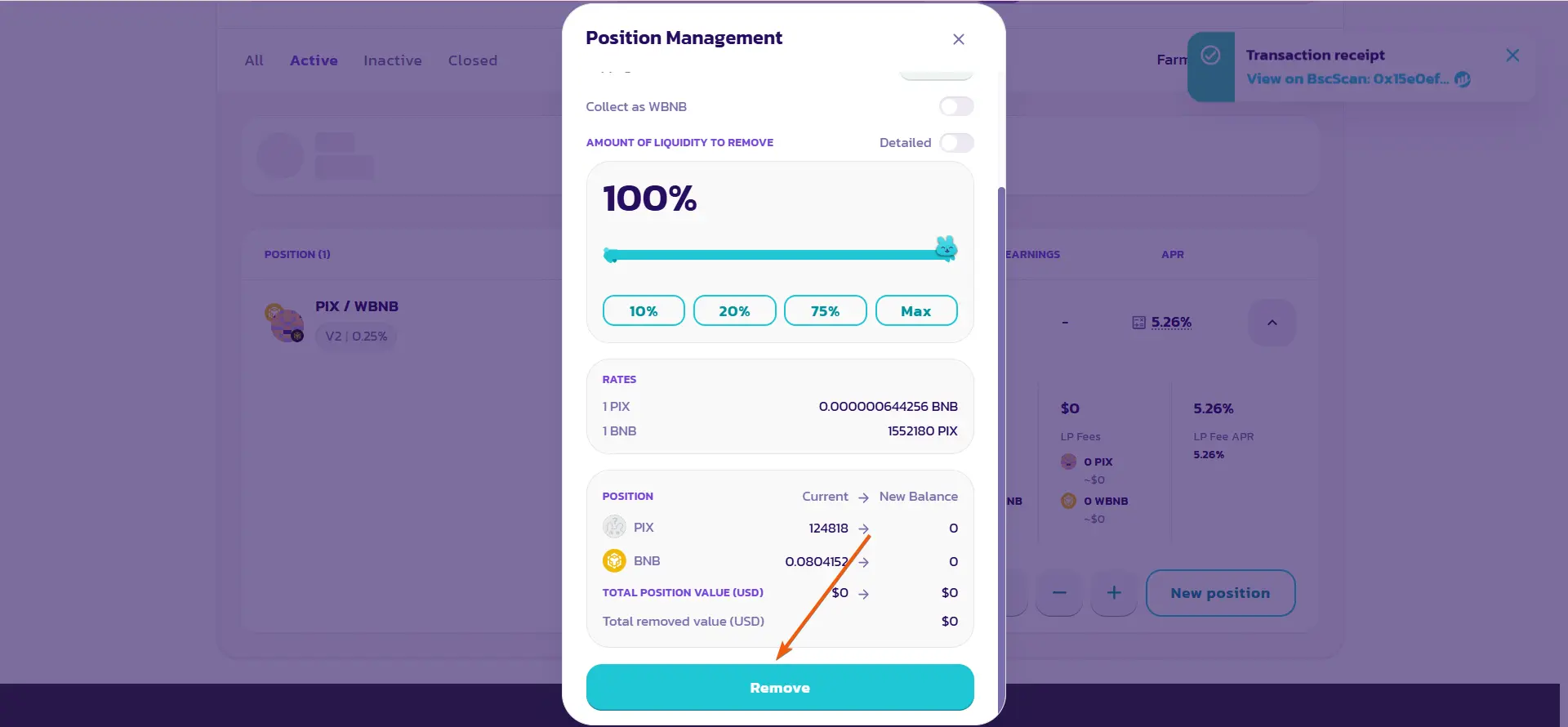
- 20
Removing liquidity
Click 'Remove'.
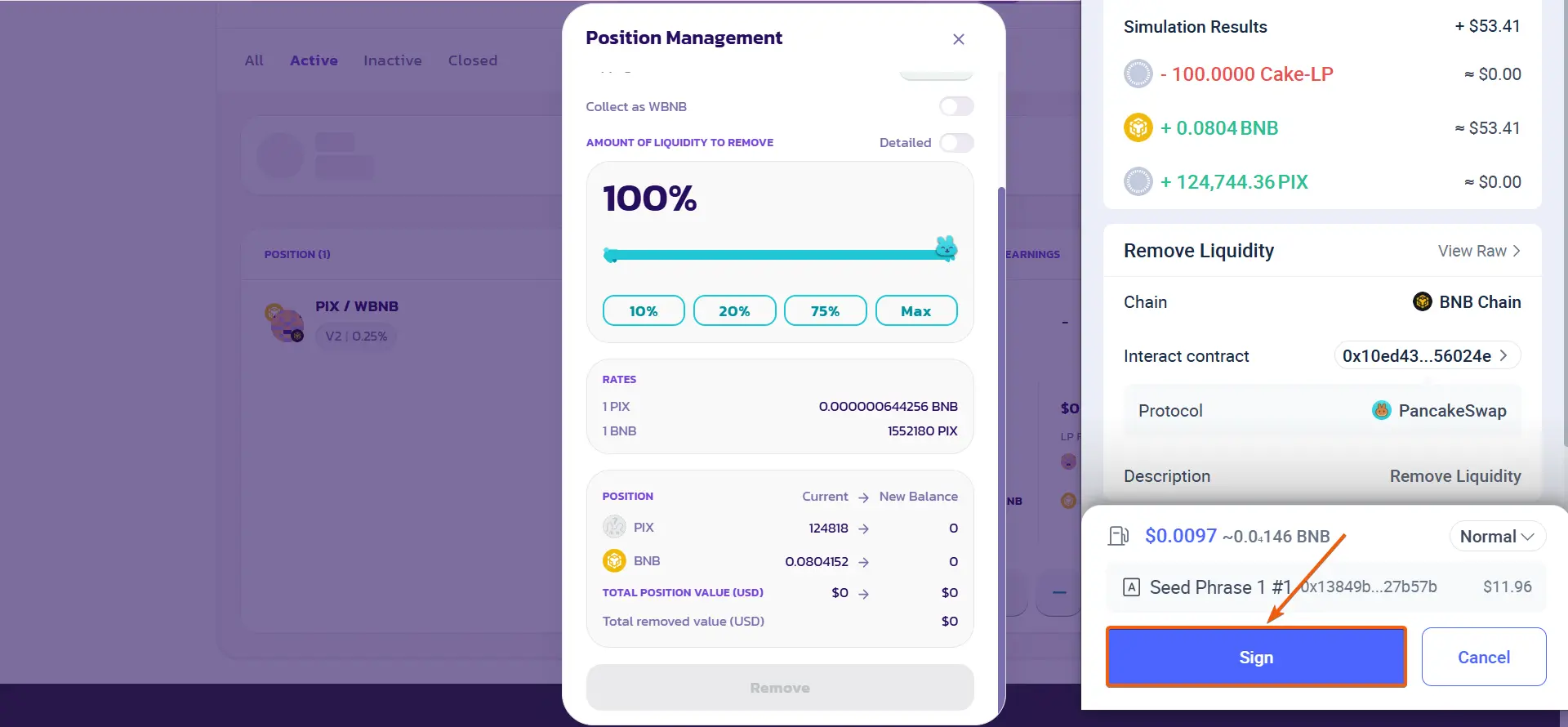
- 21
Removing liquidity
Confirm the remove liquidity transaction in the Rabby Wallet pop-up window.
- 22
Removing liquidity
After successfully removing liquidity, the funds will arrive in the wallet, and the transaction will be displayed in the transaction history.